
Integrating Lovense Into Your Broadcasts
CamSoda has partnered with Lovense to provide an interactive experience with their adult toys that, when set up, respond to the tips in your room. The more your users tip, the harder and longer it vibrates for! You can purchase Lovense adult toys at lovense.com and Amazon.
Once you have your toy:
- Download the Lovense Connect app for your Android or iOS device. The app is a must-have tool on your mobile phone if you don't have a Lovense USB Bluetooth adapter.
- Pair the toy with your device over bluetooth through the app and make sure your toy is on the same wi-fi network as your device. You can follow the instructions provided by Lovense to pair with the Lovense Connect app.
When your toy has paired, to activate the Lovense feature:
- Tap the Show Type button on your stream page and select Lovense.
- Edit the default values for price ranges, vibration intensity, and length of time for reaction with manual tipping.
- Set your value for Control Her and/or Cruise Control features and set the toggle to On to activate the option.
- Scan the QR code with your Lovense Connect app.
- Select a single toy or "all connected toys" to use during your broadcast, if you have multiple toys. It will default to "all connected toys."
- Tap Start Show to apply the settings and activate the add-on. This does not start your broadcast.
- The activated Lovense add-on will display an icon of a Lush toy along the bottom of your chat window when you are streaming. If your toy is not connected, the icon will not be visible for you or viewers.
- Your toy will now react to manual tips in range and controllers when accessed by users. Activity is published in chat.
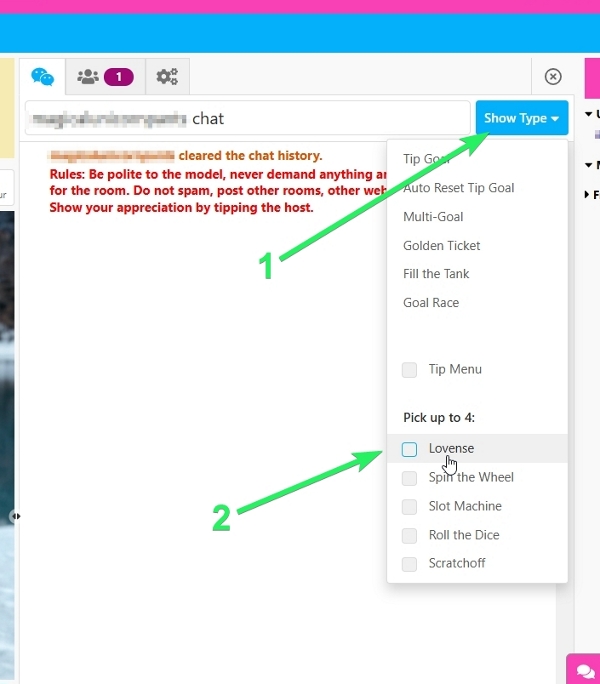
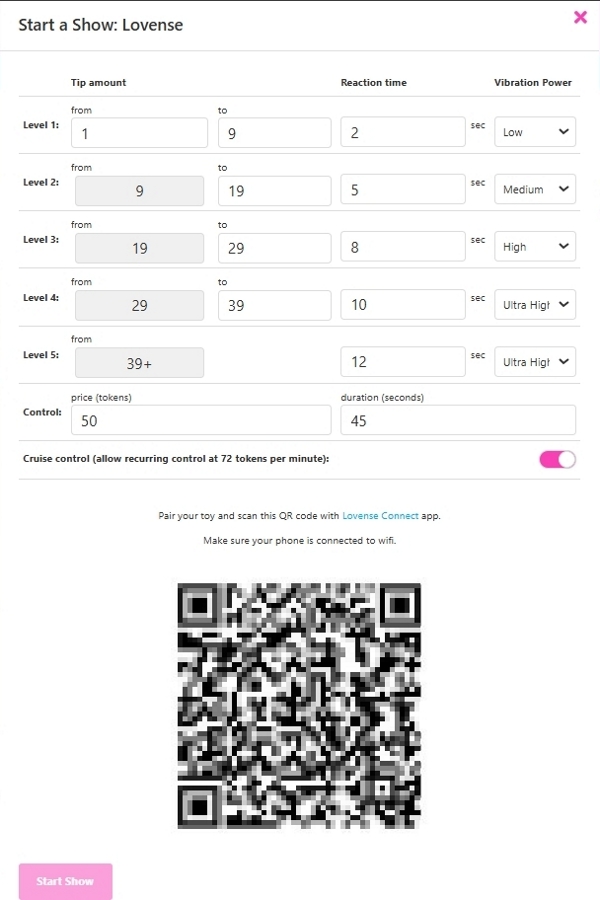
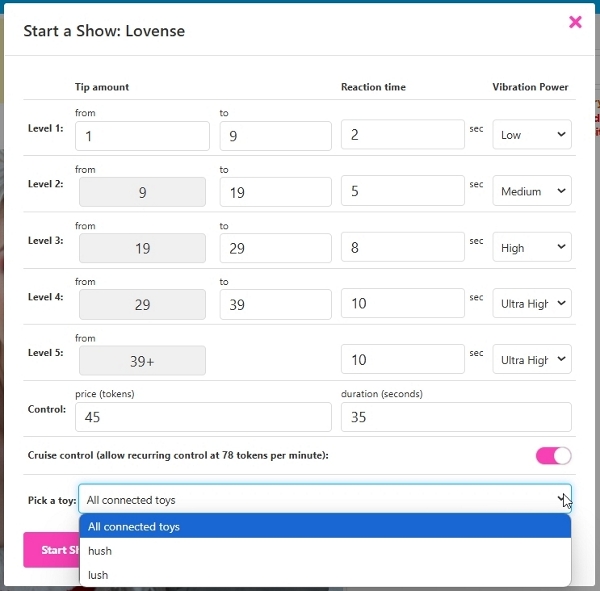
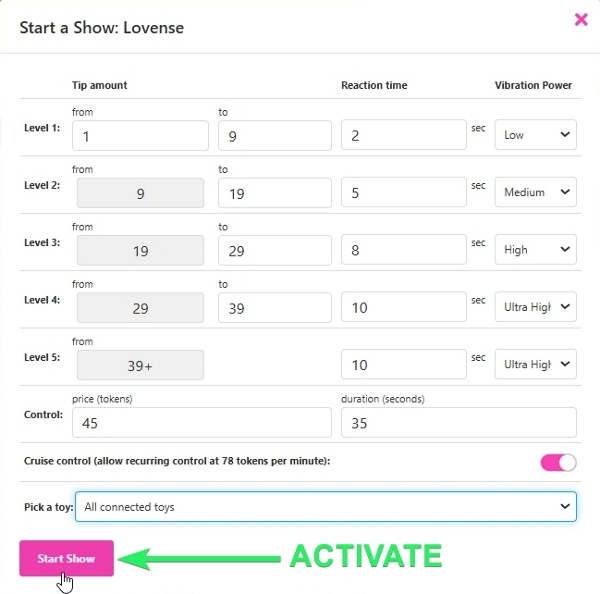
When your Lovense toy is connected, the Control Her icon will be visible along the bottom of your room's chat window:

Control Her & Cruise Control
Exclusive to CamSoda are the Control Her and Cruise Control options.
- Control Her sets a flat token price for someone to manually control your toy's vibrations for a period of time that you set, for example: 60 tokens for 60 seconds of control.
- Cruise Control is meant to be a more hands-free experience which allows the user continuous control of a toy until they choose to end control or run out of tokens, and provides additional vibration patterns. The per-minute cost is calculated using your Control Her rate/time.
Give Control
You may give a user present in your chat room control of your connected Lovense toy at-will. Select their username from your chat or guest and user lists, tap Give Control from the options and confirm to get started! You or the user can stop the control at any time.
Click here for more information.
LOVENSE CAM EXTENSION & STREAM MASTER (optional)
With Google Chrome, you can download Lovense Cam Extension, or, you have the option to download Lovense Stream Master, for broadcasting with a seamless interactive experience.
What can I do with the Lovense Cam Extension or Lovense Stream Master?
Your stream can look even more polished and professional in just a couple of minutes by tweaking the associated settings! With the Lovense Stream Master program and/or the Lovense Cam Extension, you can edit your basic tip level settings, add visuals such as themes, stickers, tip animations, adding a digital stream assistant, and gesture commands. You may also set up custom tip-activated sound effects and music for your stream by accessing the Soundboard tool, which also gives you the ability to upload or record your own sounds.
You may select the Chatbox to access your stream chat, messages, and tip details with ease. You'll be able to quickly identify VIPs and respond to them directly. As an added bonus, the Chatbox will help analyze your data to help identify any areas of improvement which can assist you in maximizing your profits. You will also be able to enable insights into your broadcasts. Your show data can be used to analyze your income and track other metrics to optimize your streams.
LOVENSE WIDGET (optional)
If you have Lovense Cam Extension enabled on your browser, you will see a floating Lovense widget, which you can tap to access different settings including sending a test tip. The widget looks like a webcam surrounded by different icons.
- If there are issues or your toy is not connected, the widget will display red.
- You may tap the widget to address any detected errors.
- Once any errors have been addressed, the widget will turn green and the settings widget will display as active.