
Controlling Your Chat Room
Control your chat atmosphere with user management options like blocking, silencing, and appointing Moderators. Access these settings via your chat window, Guest List, and in-room settings menu (the gear icon). With our available tools, you can make sure your chat room stays at the vibe you want!
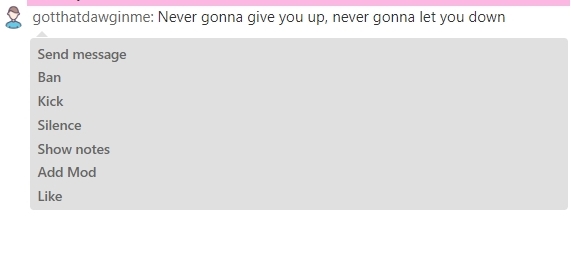
- Manage your chat by selecting a guest from your list and using the drop-down menu options such as Ban, Add Mod, Show Notes, and Like. These options are also available by tapping a visitor's username in the chat window.
- Reward engaging members with a Like, contributing to a token bonus for the most-liked member.
- Use Show Notes for private tracking of member interactions, preferences, and other details.
- If a guest is being disruptive, Banning prevents them from re-entering or messaging you either permanently or for a chosen period of time, while Kicking removes them temporarily. Silencing mutes a user's messages in the chat.
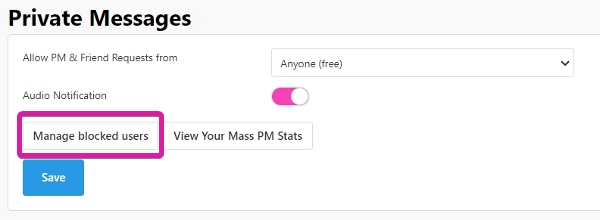
- View and manage your blocked users through Settings & Privacy page under the Private Messages section.
- Moderators can kick, ban, or silence users, message you, and manage show-types, including free entry to Golden Ticket shows. Choose trustworthy moderators, ideally consistent supporters. Moderators appear with red usernames in chat and under the Moderator category.
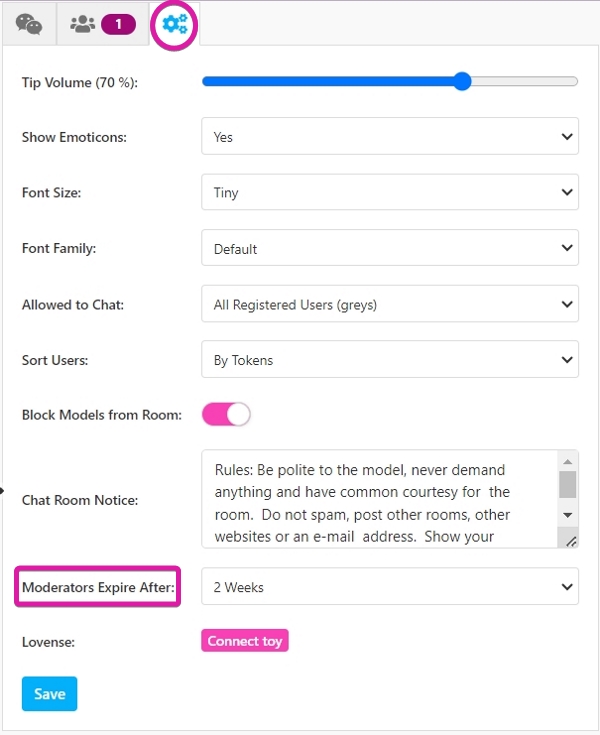
- To appoint or remove a moderator, use the gear icon in-room settings to set the mod duration and save, then tap the member's username in chat or the Guest List and select 'Add Mod' or 'Remove Mod' as needed. Exercise caution when choosing moderators to prevent abuse of powers.
Chat room shortcuts:
- Ban a user at any time type /ban username
- Unban a user at any time type /unban username
- Add a user to a Golden Ticket Show type /add username
- Clear your chat /clear